
Shift Swapping
We’re thrilled to introduce a game-changing feature in Armada: Enable Shift Swapping!
This new configuration enhances the functionality of the "Request a Replacement" button, making scheduling smoother and ensuring better shift coverage.
Enabling Shift Swapping
Shift Swapping is a new feature designed to streamline how shifts are reassigned among workers. When enabled, it replaces the existing Replacement Request process. Organizations must choose between one or the other, as both cannot be active simultaneously.
How to Enable Shift Swapping
- Navigate to Organization Settings.
- Go to Scheduling Configurations.
- Locate the Shift Swapping option and turn it on.
Key Differences Between Shift Swaps and Replacement Requests
- Shift Swapping: When a worker releases a shift, another worker can claim it instantly. Once claimed, the shift is automatically confirmed without admin approval.
- Replacement Requests: When a worker requests a replacement, they must also call their staffing manager to notify them. The admin then reviews and approves the replacement manually.
Important Notes
- Enabling Shift Swapping will disable Replacement Requests.
- If your organization requires admin approval for shift changes, stick with Replacement Requests.
- If you prefer a more automated process where shifts are picked up without admin intervention, Shift Swapping is the better option.
Here’s how it works:
- When a worker requests a replacement, they are not immediately removed from the job.
- Instead, other eligible workers are notified and can pick up the shift themselves.
- Once the shift is claimed, the original worker is removed, ensuring seamless coverage without any gaps.
This feature helps reduce scheduling disruptions and keeps your operations running smoothly.
How to Swap a Shift in the Armada App
Swapping a shift is easy with our new feature!
Follow these steps to request or pick up a shift swap:
Requesting a Shift Swap:
- Click "Request a Swap" in the app.
- Select the shift you want to swap.
- Enter a reason for the swap request.
- Your request will be logged, and you will have the option to cancel your request if needed.
Picking Up a Shift Swap:
- Go to your Scheduled tab to see available swap requests.
- If a swap is available, click "Pick Up Swap" to claim it.
- You will receive a confirmation message: "Swap picked successfully!"
Canceling a Shift Swap:
- If you no longer need to swap your shift, you can cancel your request at any time.
- Once canceled, you’ll receive a confirmation message: "Swap request canceled successfully."
Important Reminder:
- If no one picks up your swap request, you will remain responsible for your shift.
- You will receive an email reminder 2 hours before your shift if it has not been swapped.
Make sure to check your app regularly for updates on your swap requests!
-
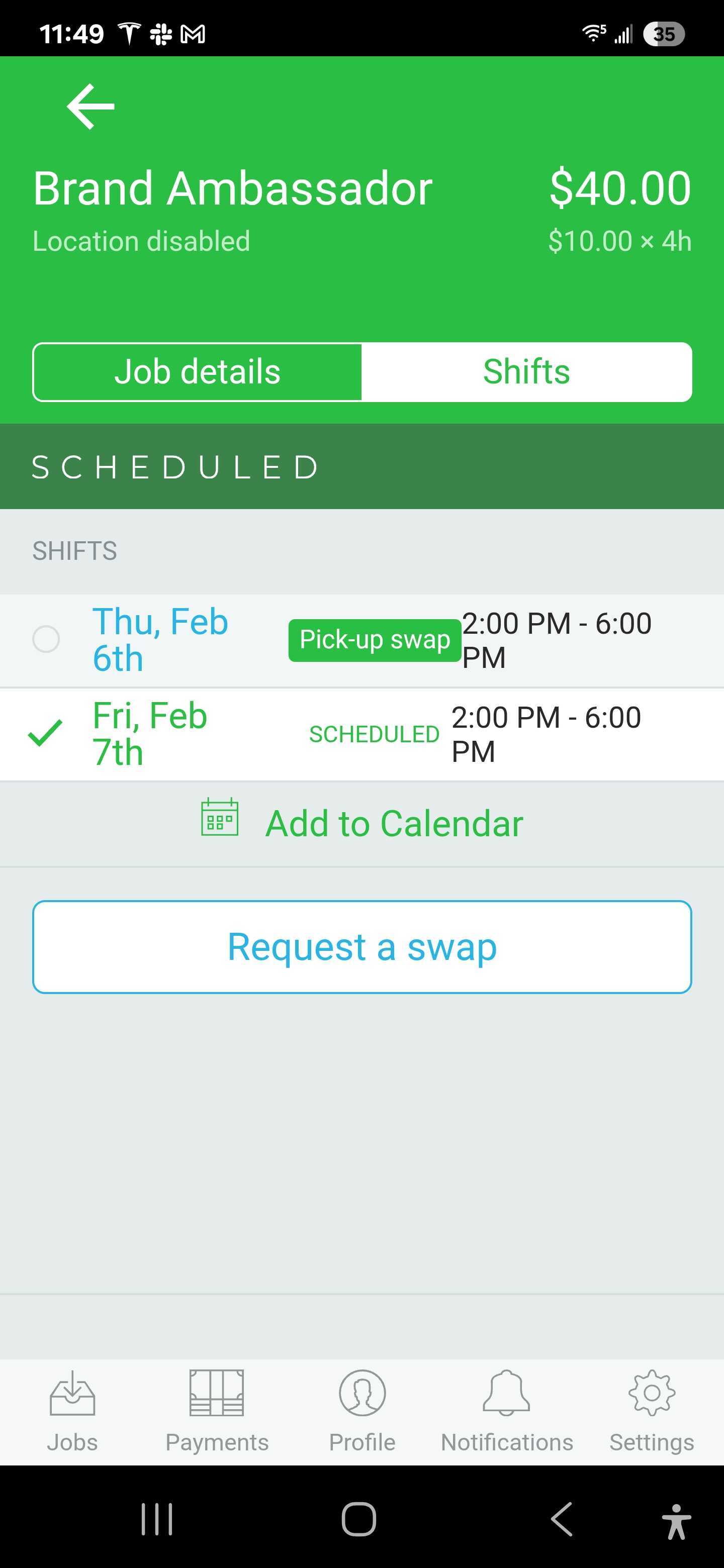
You can request a shift swap by clicking "Request a swap" and selecting the day you wish to swap. 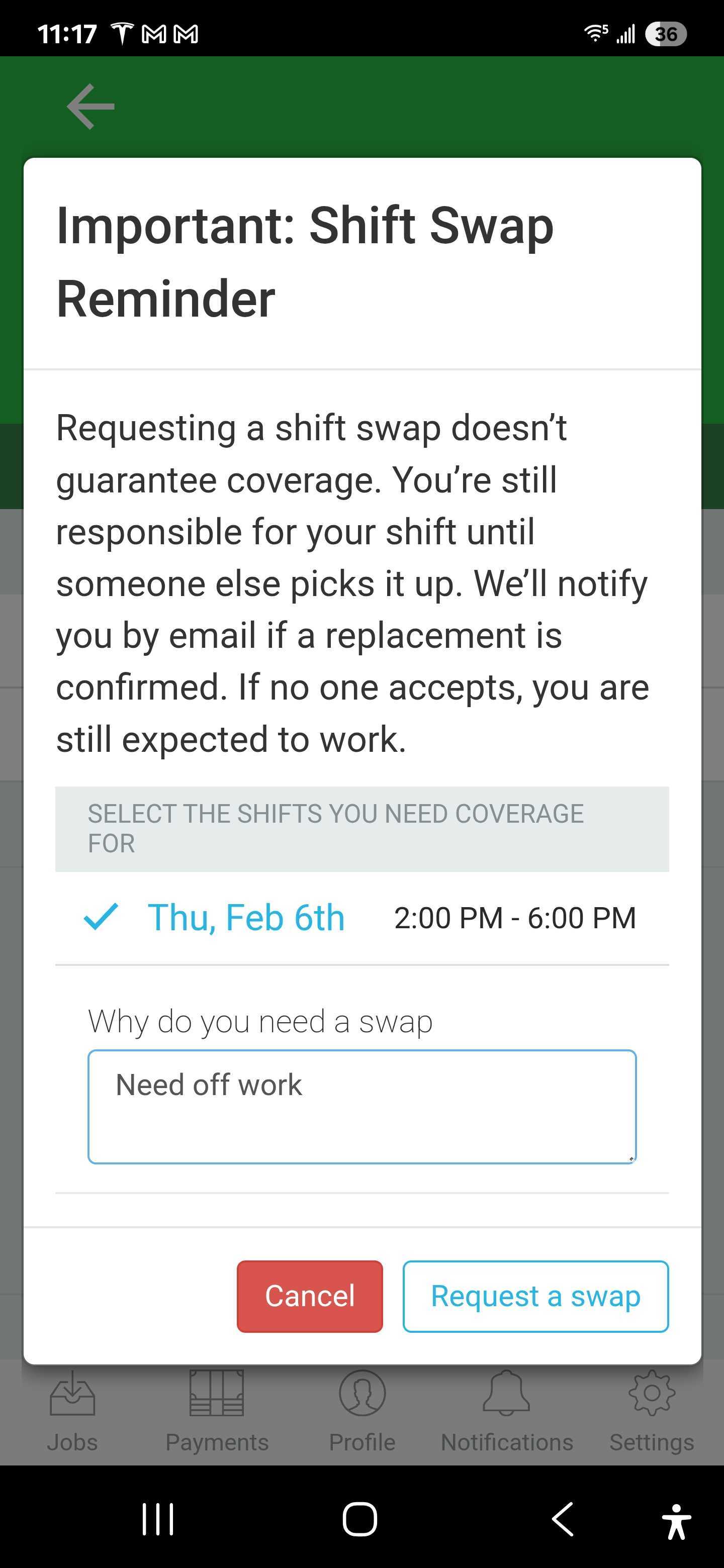
Write a reason why you need to swap
-
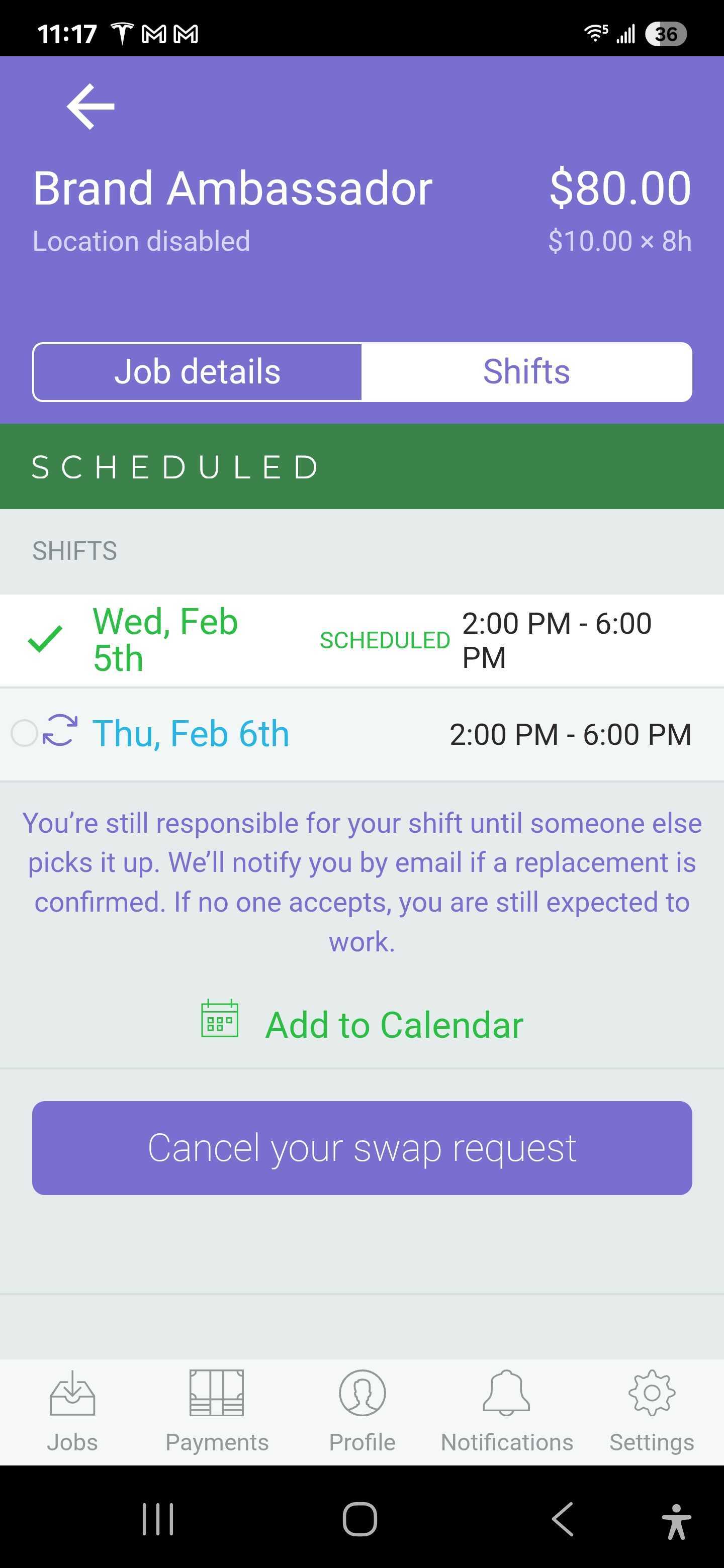
This shows the swap was requested and you have the option to cancel your swap request. 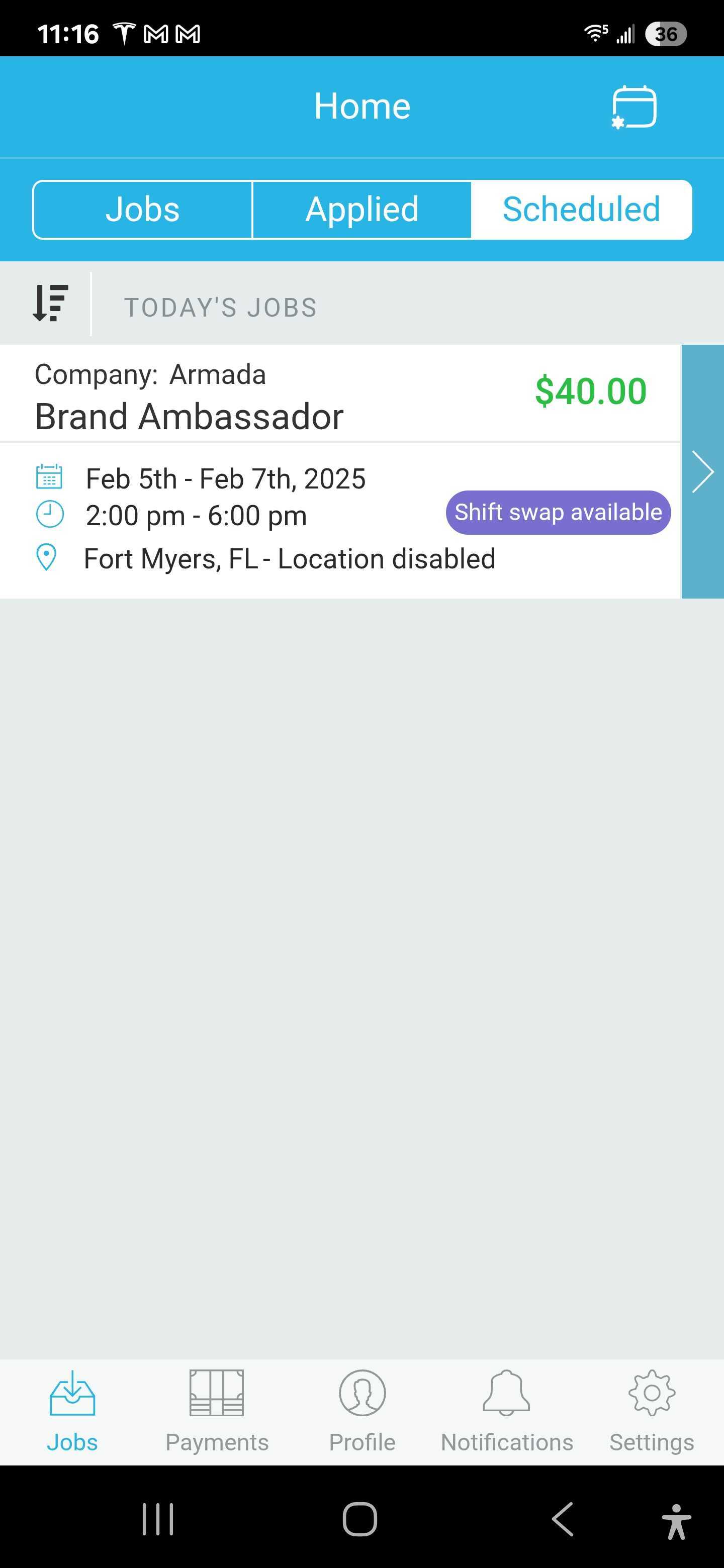
On your scheduled tab you'll be able to see if there is a shift to pick swap available to pick up.
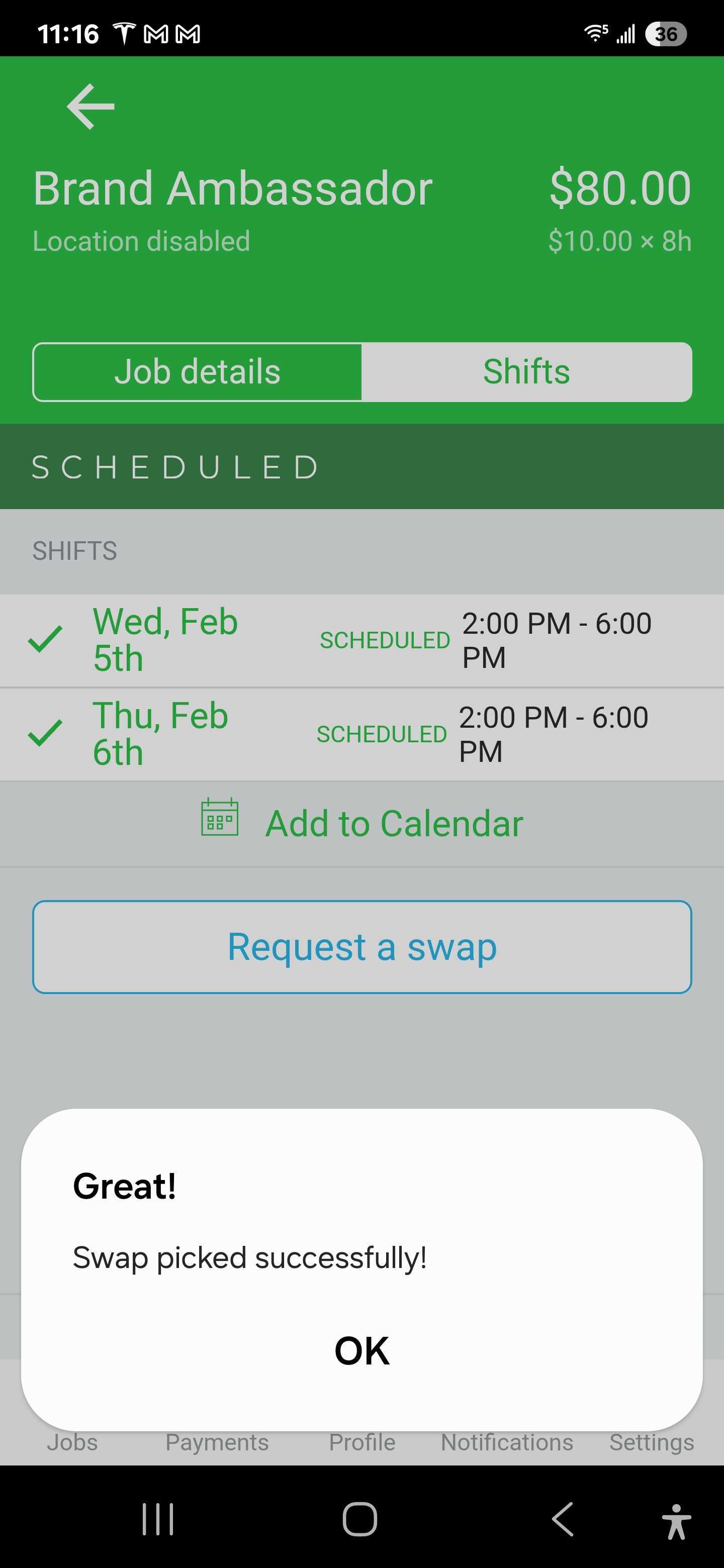
If you pick up the swap, you will get this notification as confirmation, "Swap picked successfully!".


